
 PearPass
How To Sync Vault Between Devices
PearPass uses peer-to-peer technology to sync vaults securely without relying on centralized servers. Follow the steps below to sync your vault from a desktop to a mobile device.
Syncing from Device 1 (Desktop)

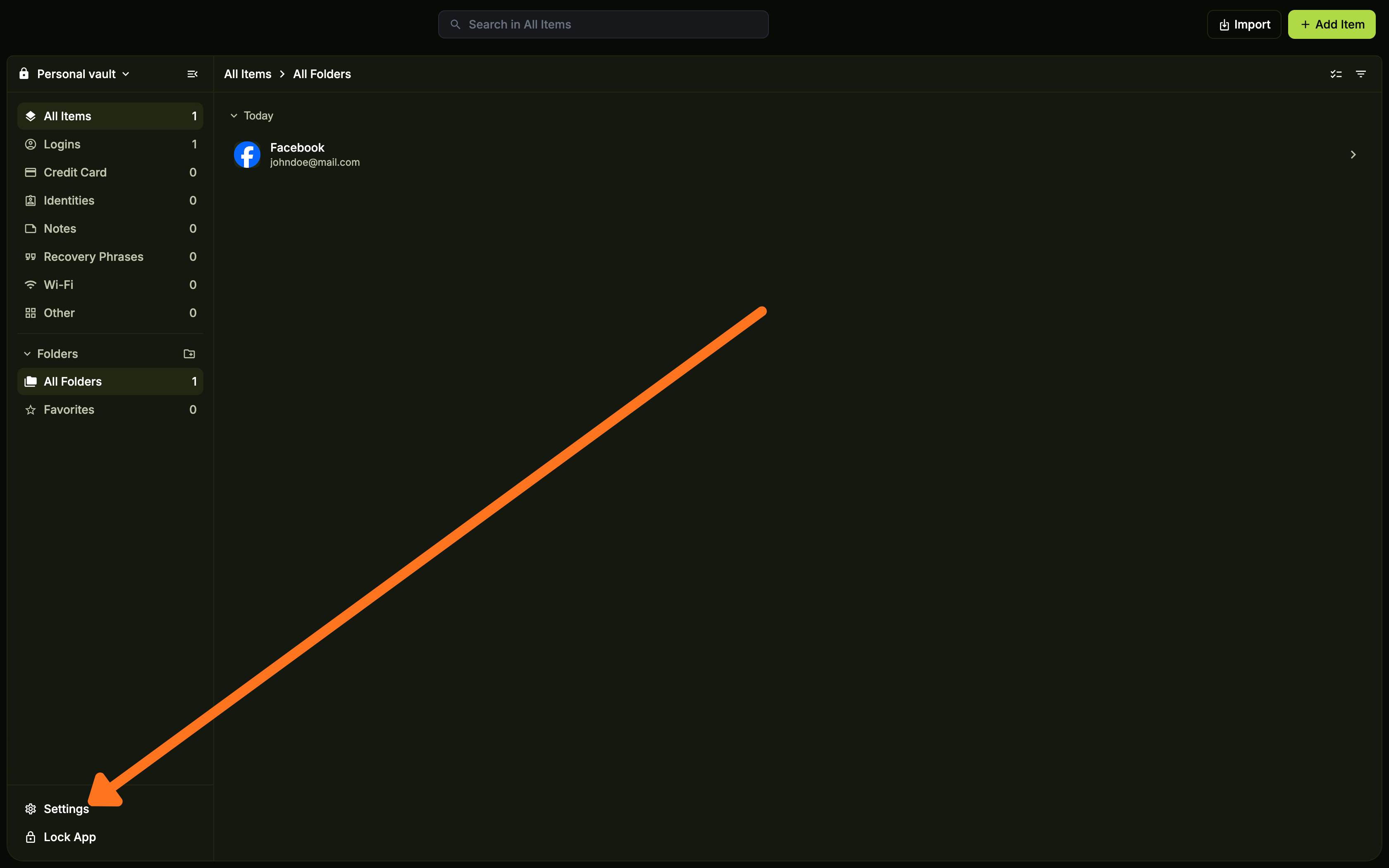
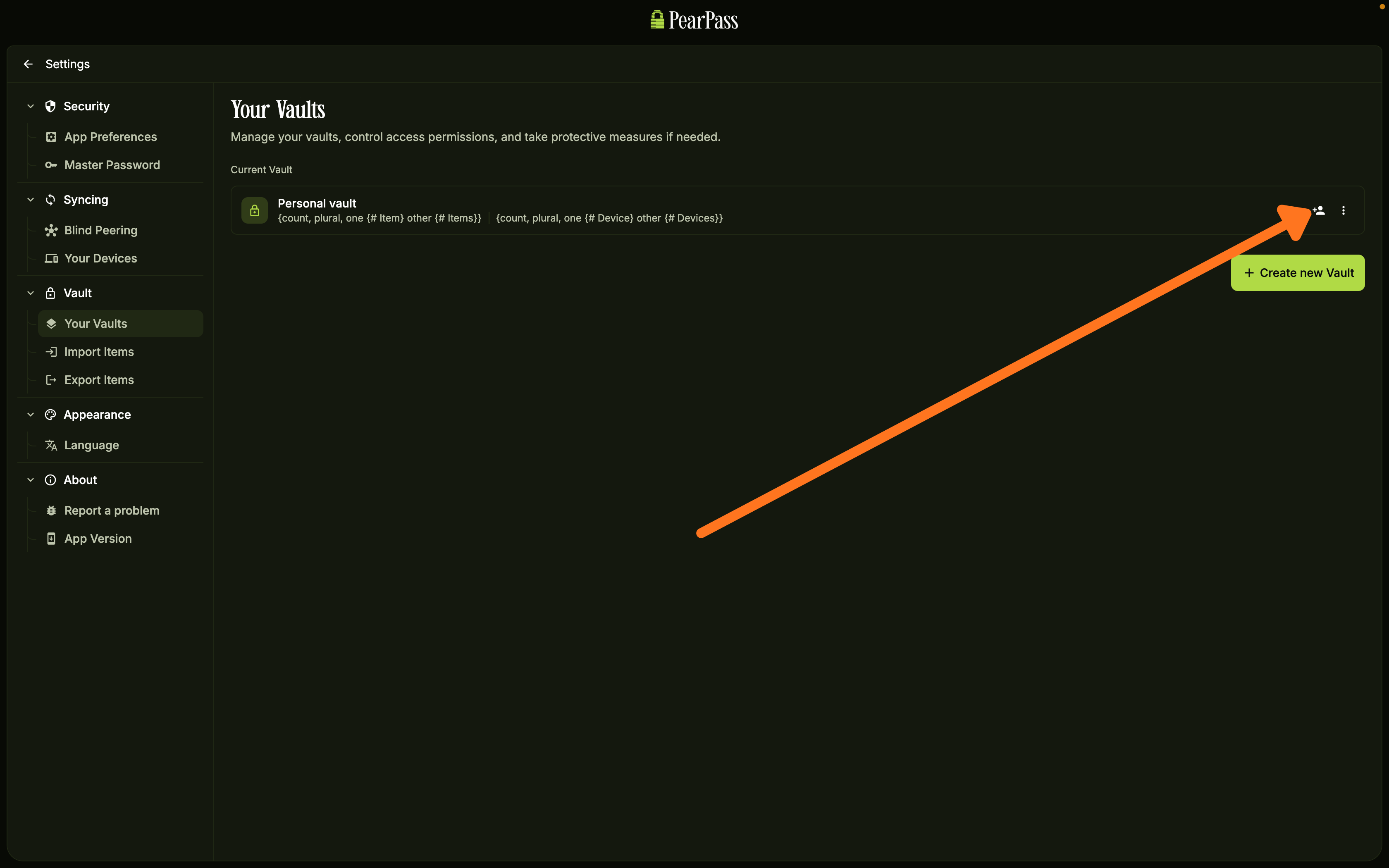
Copy the vault link
A window opens with a Vault Link and a QR Code. You only need one. Copy the Vault Link to enter it manually on your mobile device, or scan the QR Code directly.
Syncing to Device 2 (Mobile)
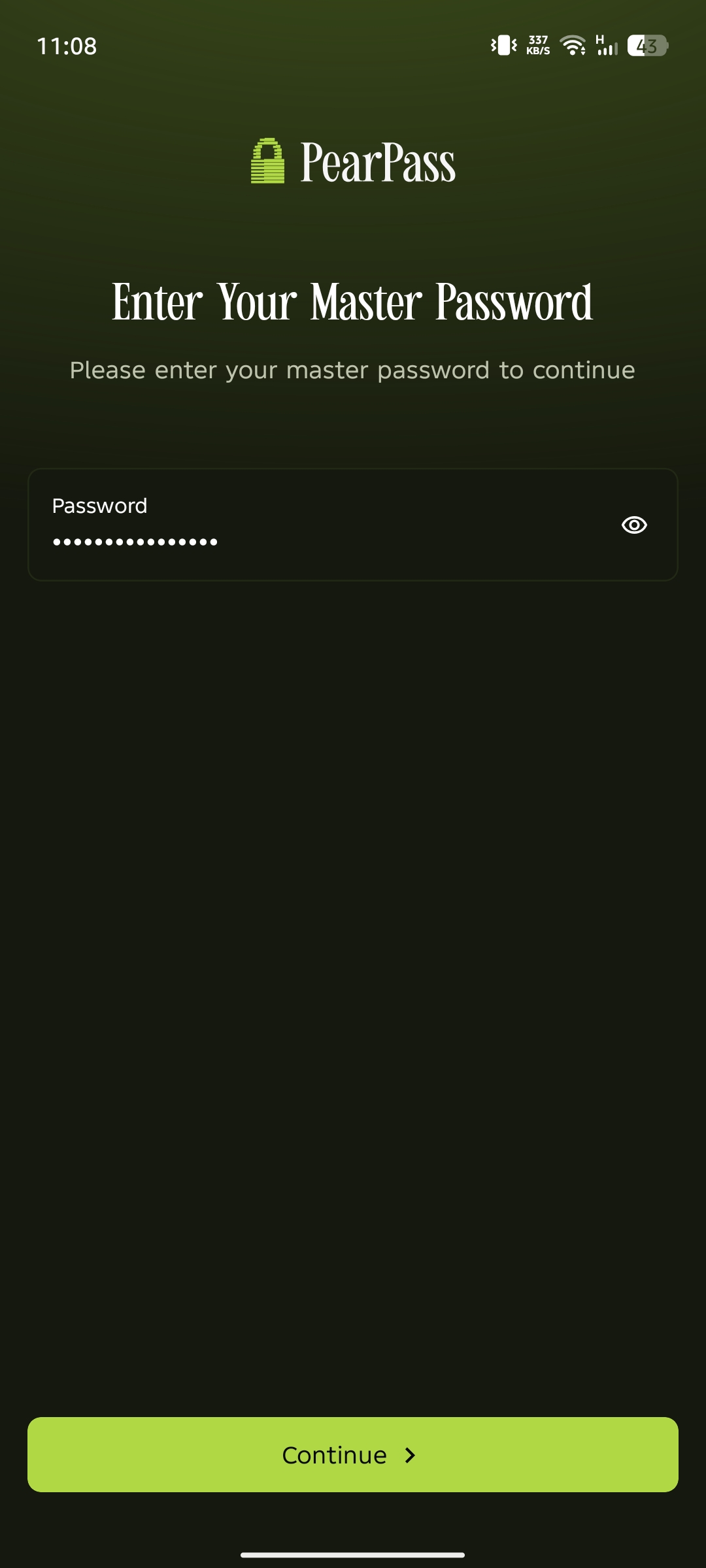
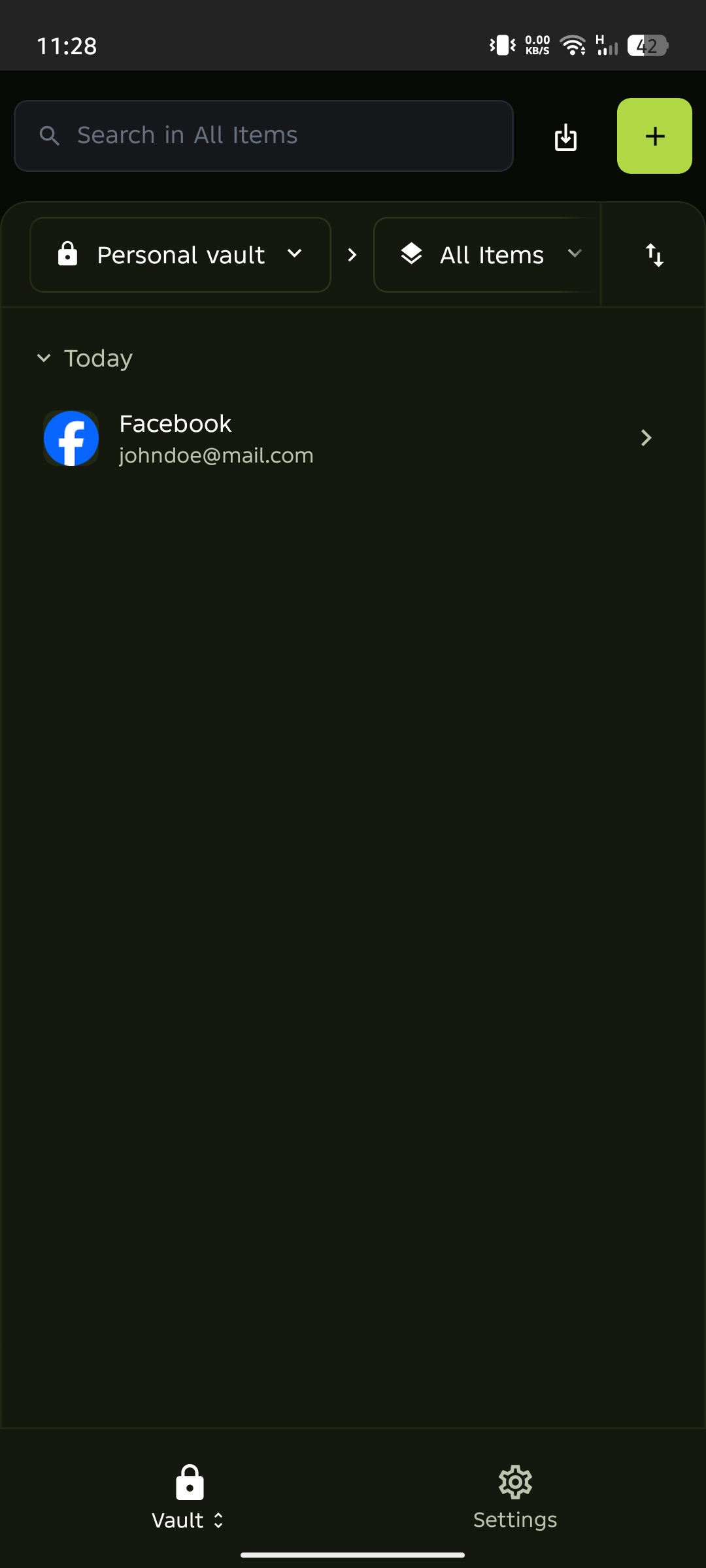
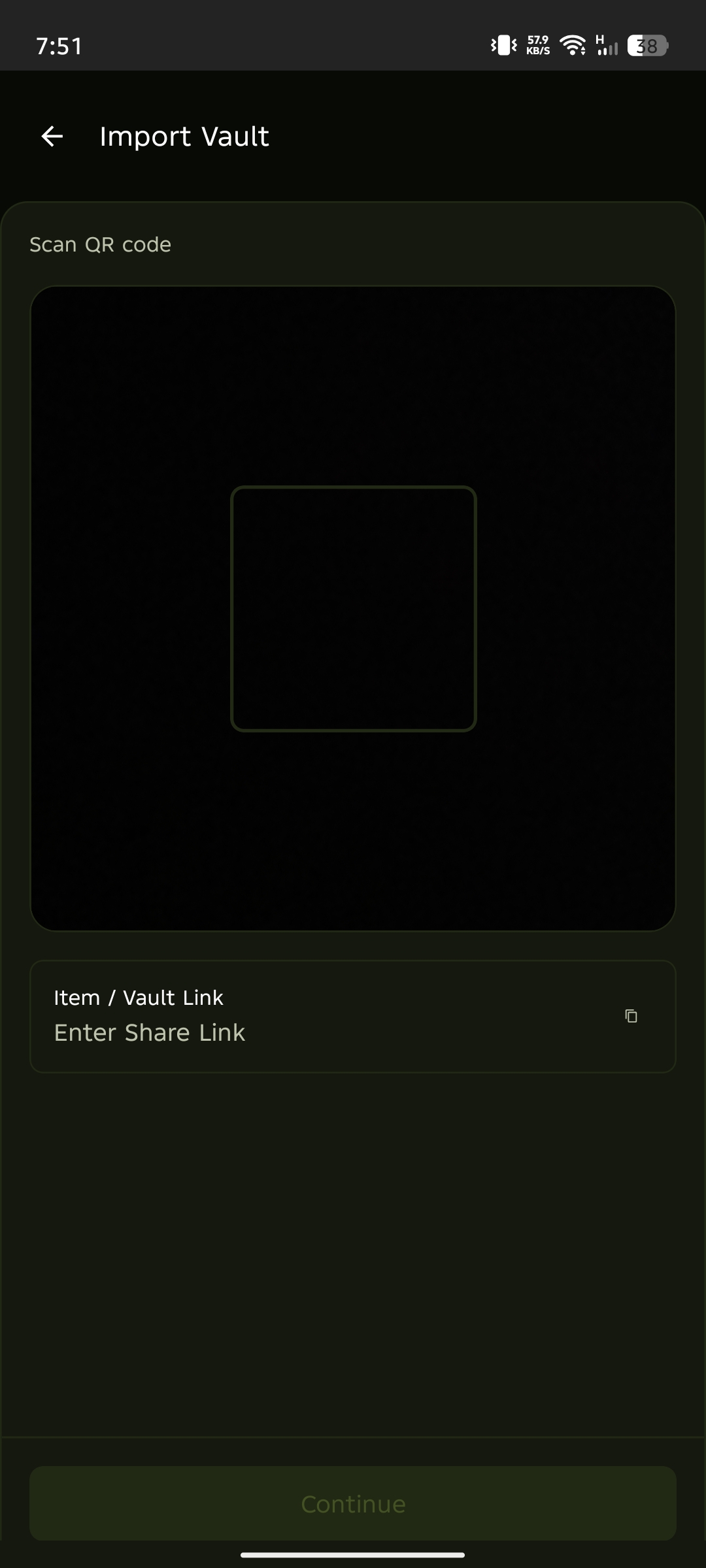
Enter or scan the vault link
Enter the Vault Link from your computer and tap Continue, or scan the QR Code.
Your vault is now syncing securely between both devices. Any changes you make on one device automatically update on the other.