 PearPass
How To Delete An Item From Your Vault
Follow the steps below to delete an item from your PearPass vault.
Want to update the item instead of deleting it? See How To Edit An Item In Your Vault.
Deleted items cannot be recovered. Make sure you want to delete the item before confirming.
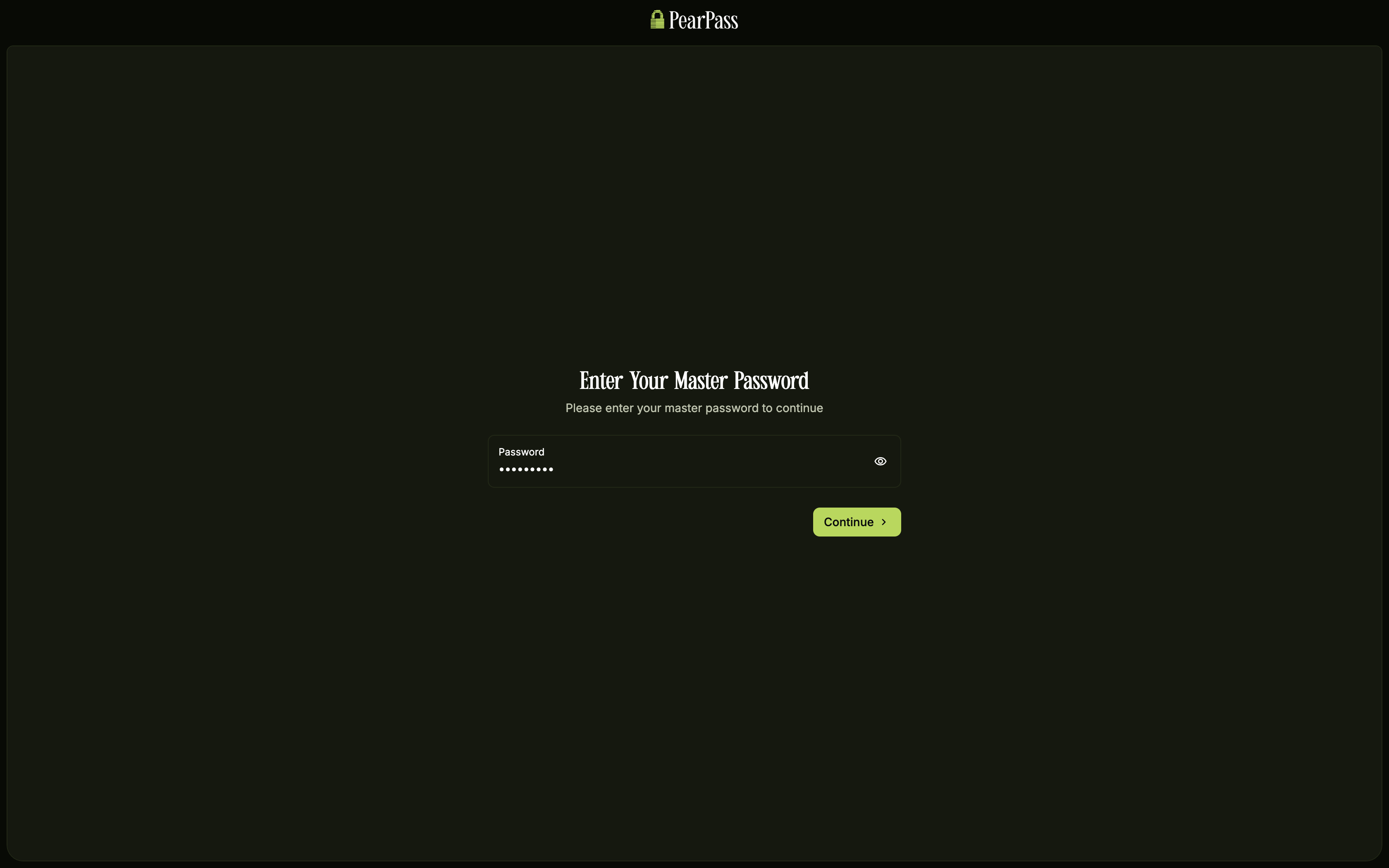
Sign in
Open PearPass on your computer and sign in with your master password.
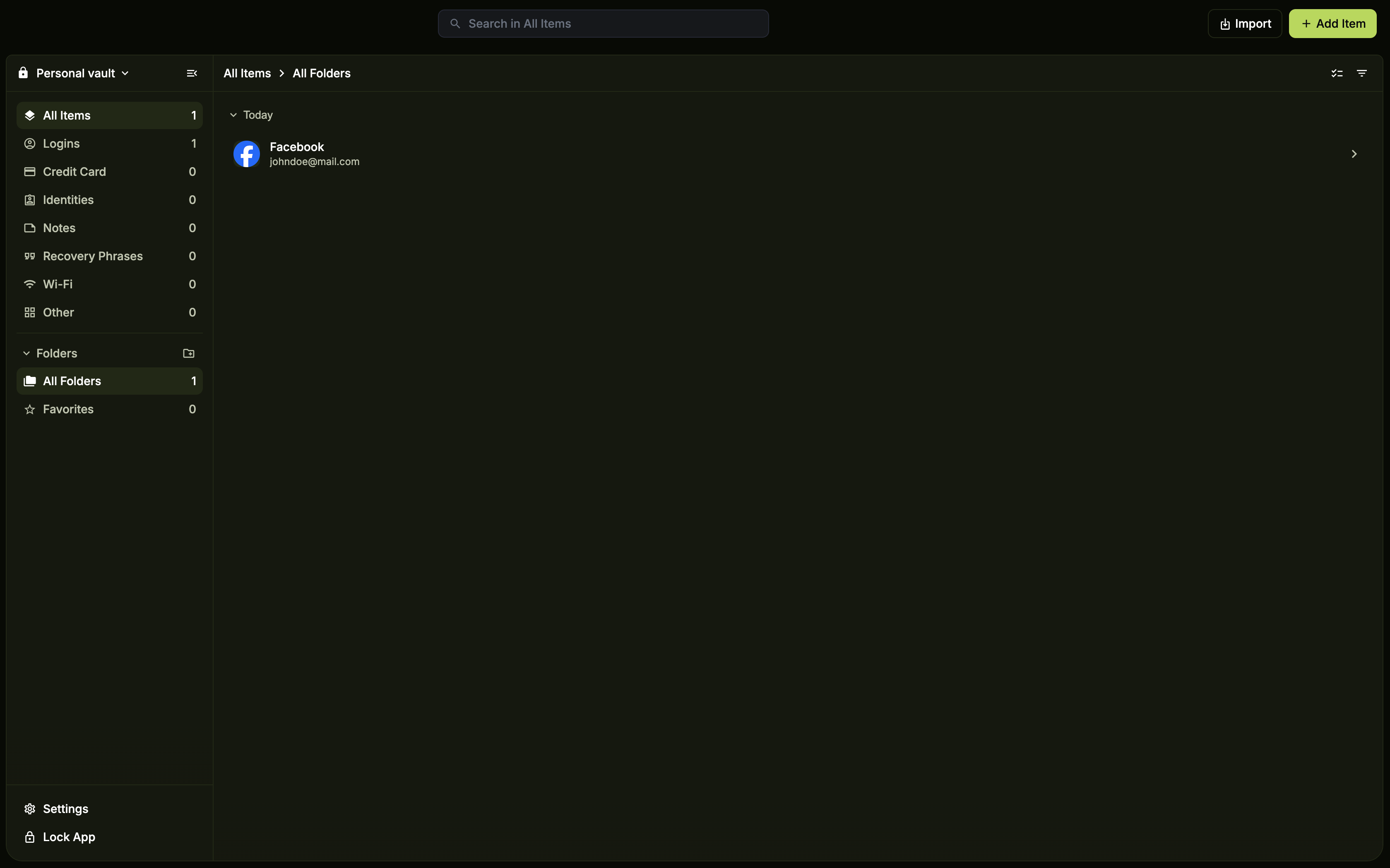
Select the item
Find the item you want to delete in the vault list, then click it to open its details.
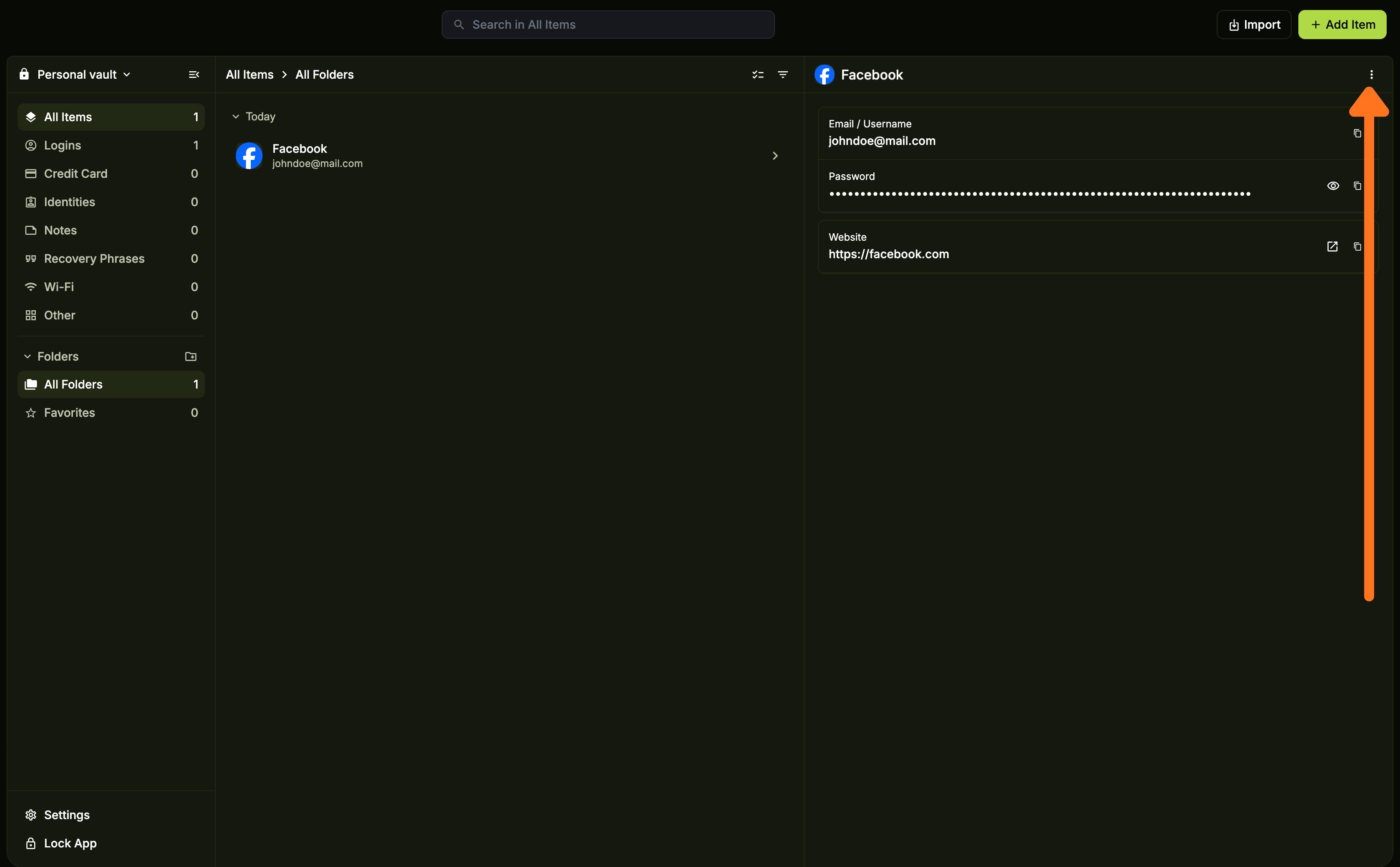
Open the options menu
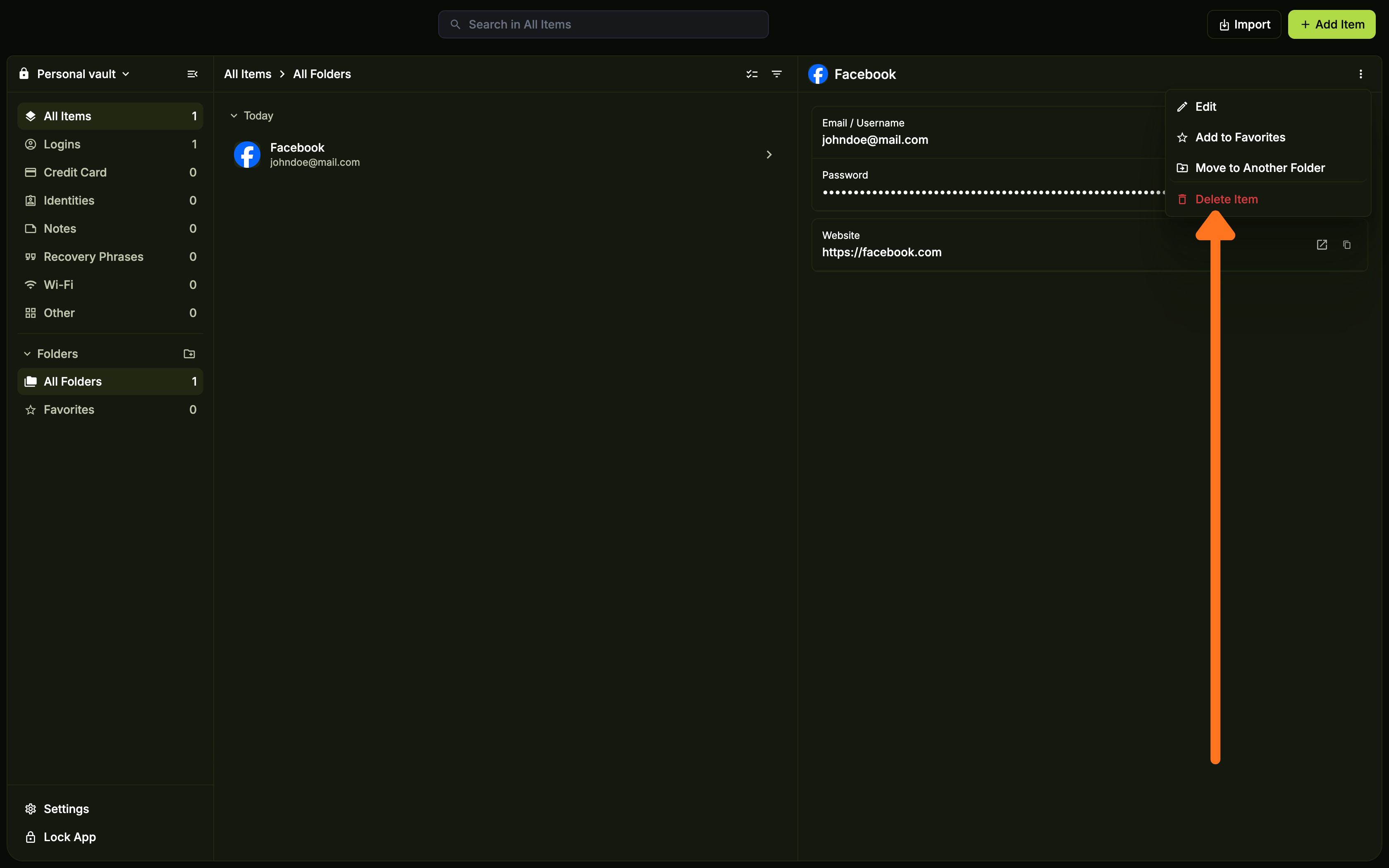
Click the three vertical dots ( ⋮ ) in the top right corner of the screen to open the options menu.
Select Delete Item
Click Delete Item from the options menu.
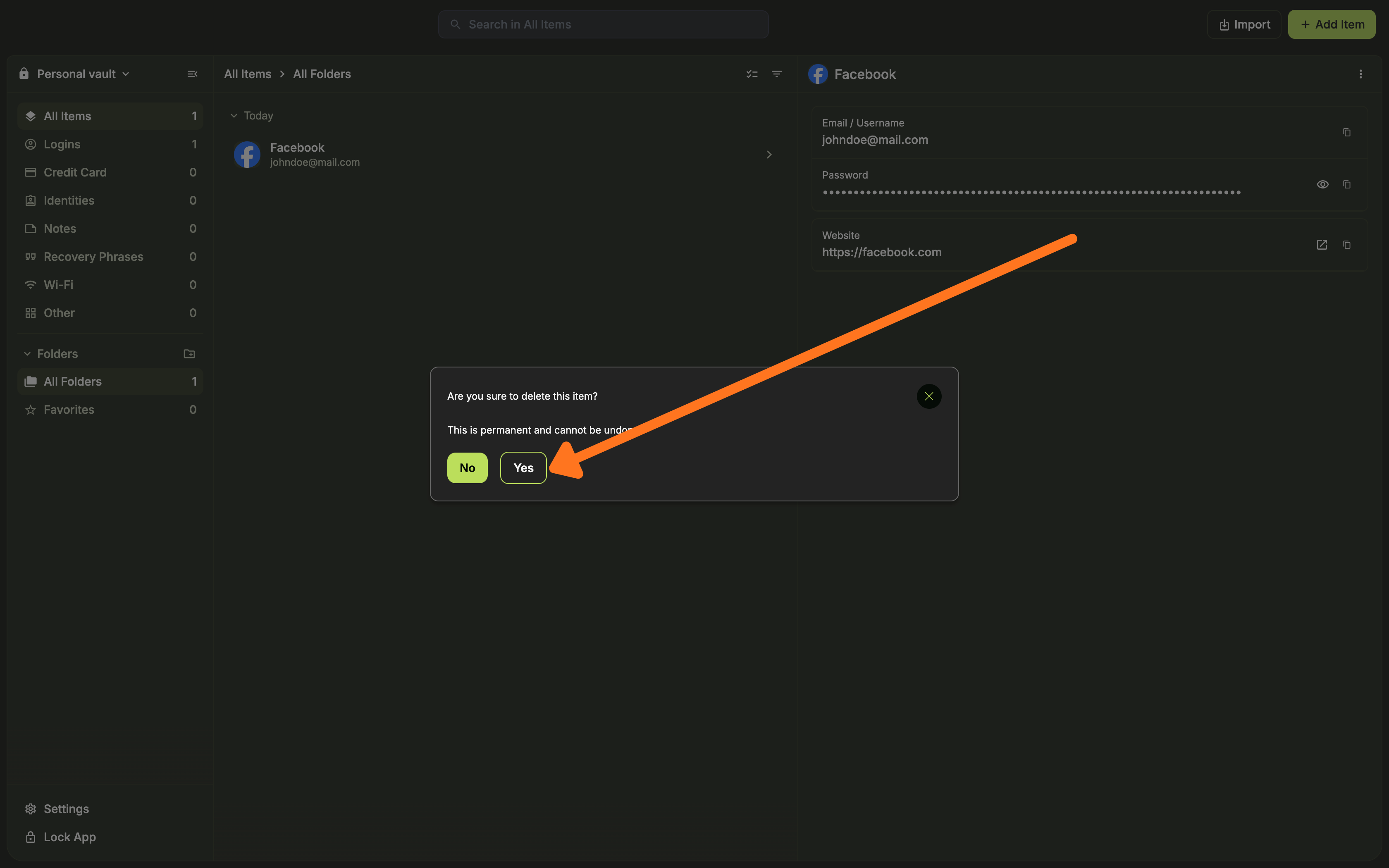
Confirm deletion
When the confirmation screen appears, click Yes to permanently delete the item from your vault.
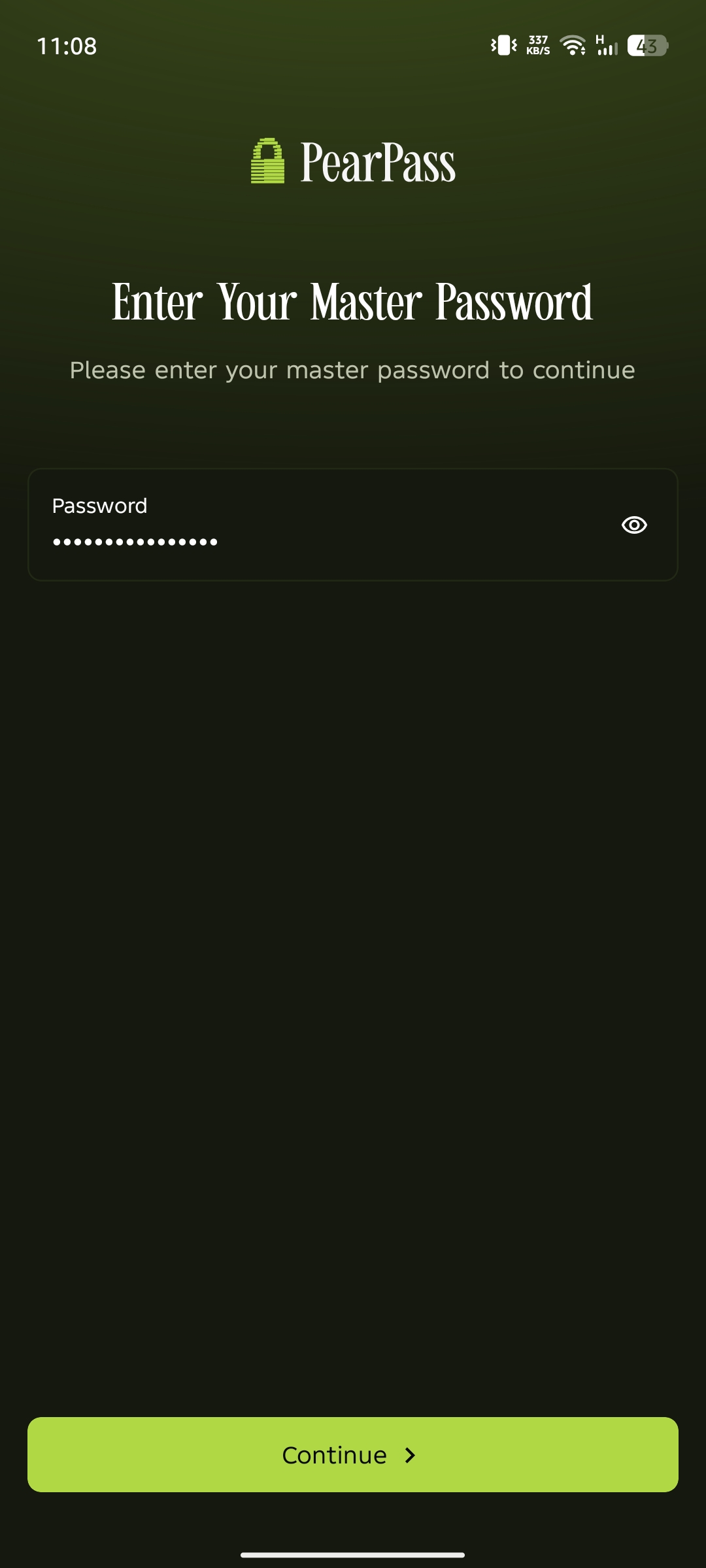
Sign in
Open PearPass on your mobile device and sign in with your master password.
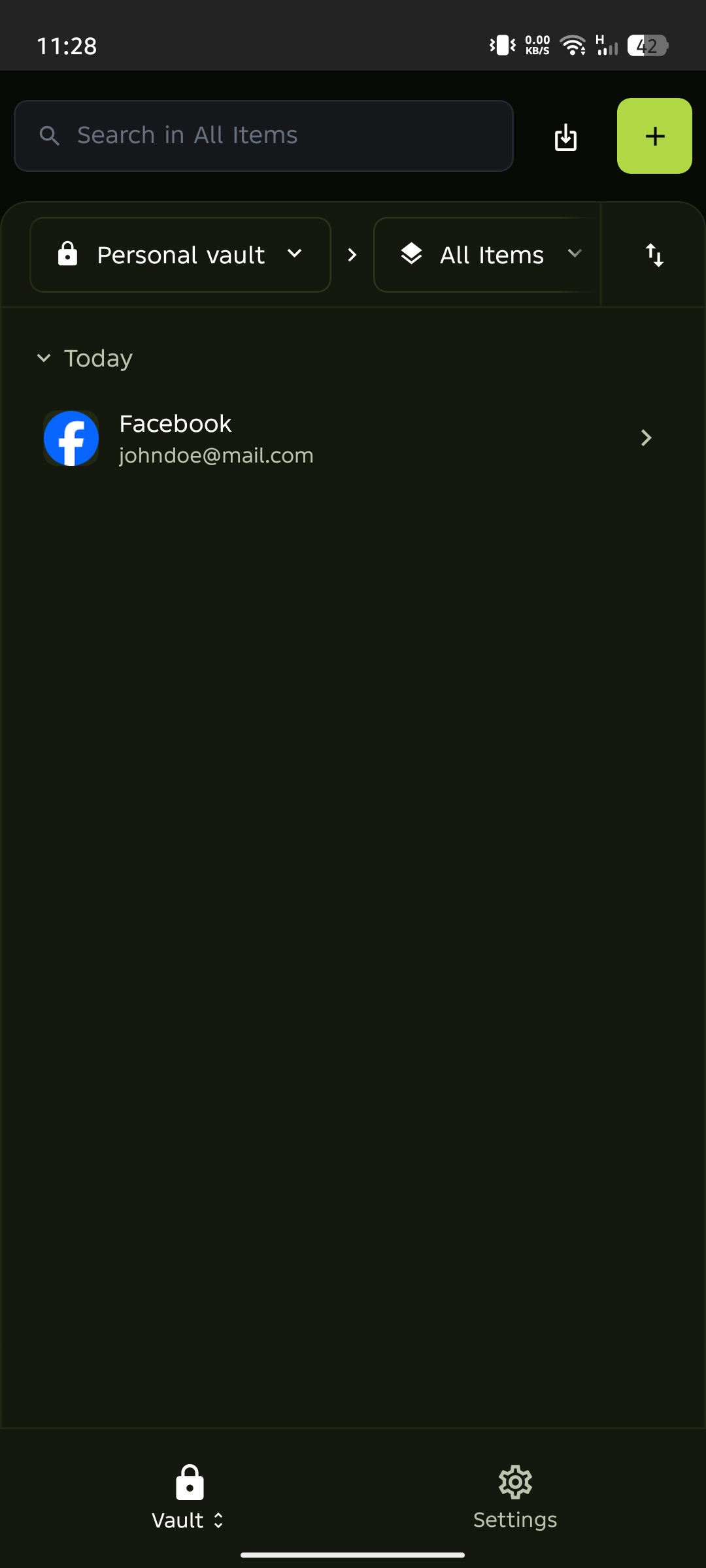
Select the item
Find the item you want to delete in the vault list, then tap it to open its details.
Open the options menu
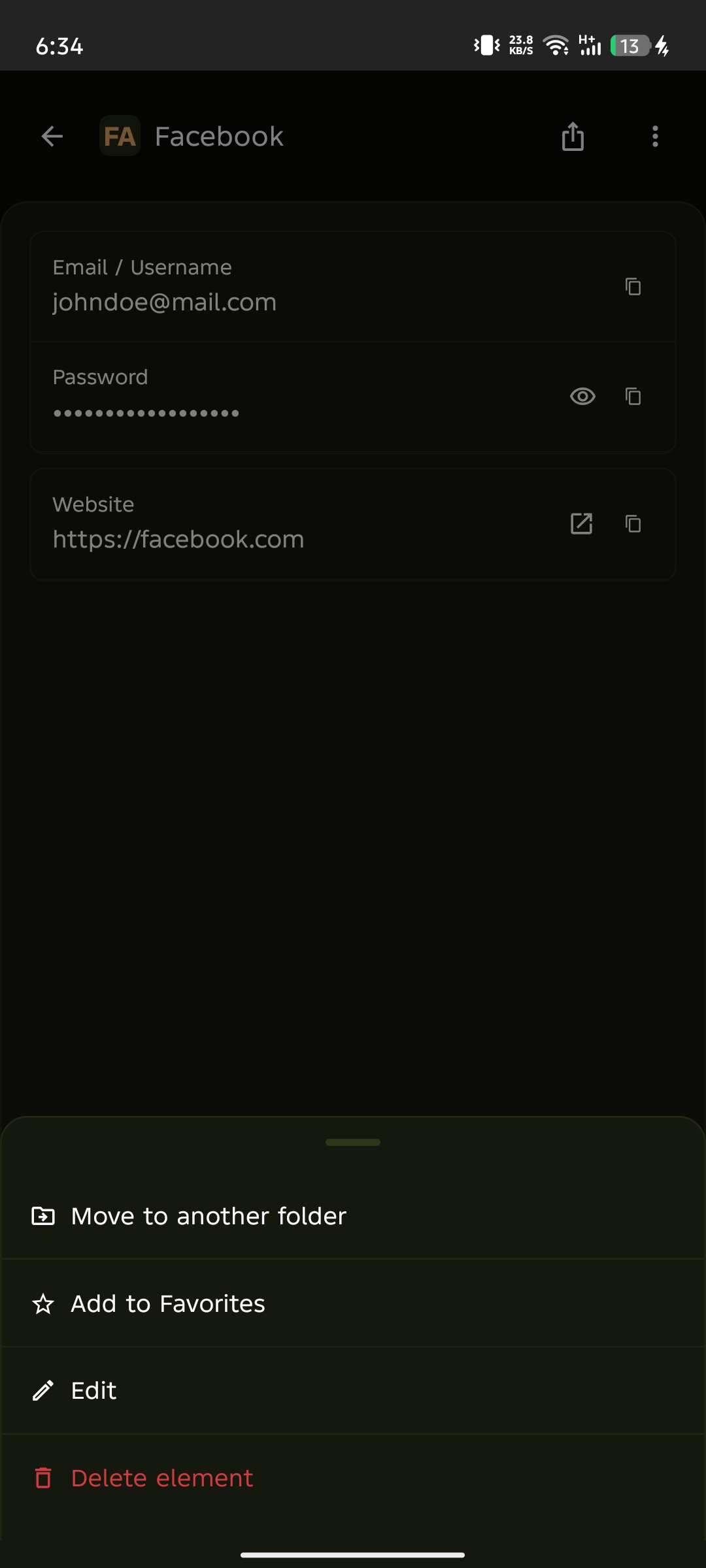
Tap the three vertical dots ( ⋮ ) in the top right corner of the screen to open the options menu.
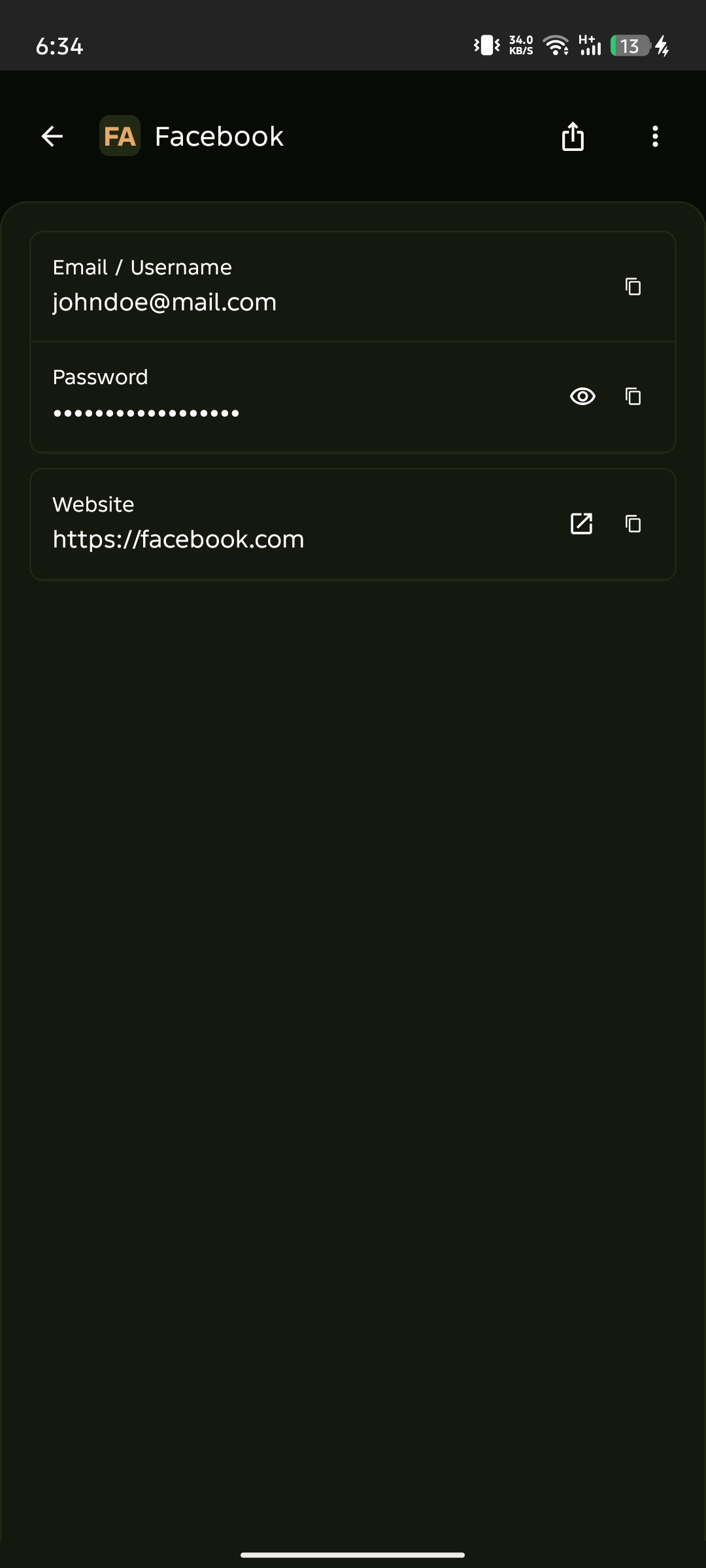
Select Delete Item
Tap Delete Item from the options menu.
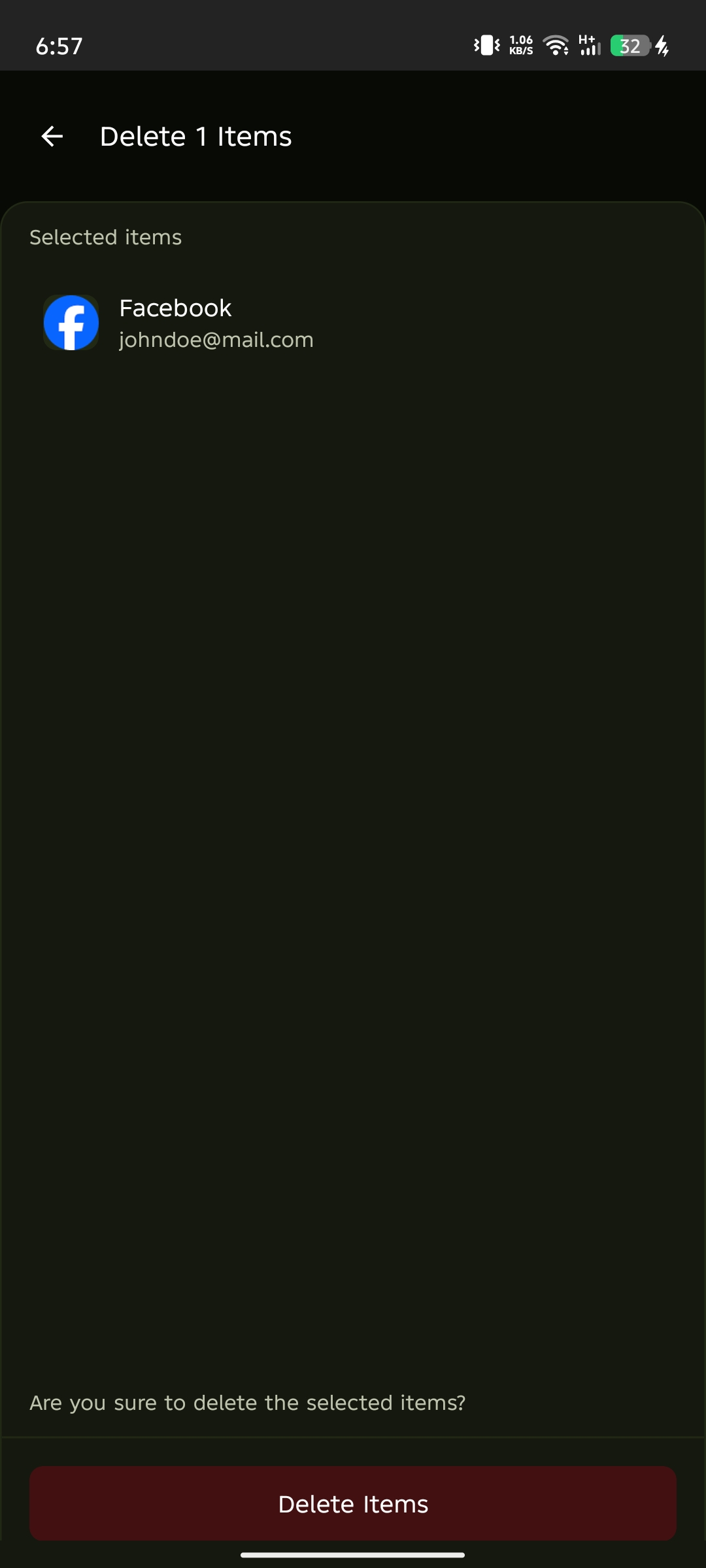
Confirm deletion
On the confirmation screen, tap Delete Items to permanently delete the item from your vault.